












PRO-TAB ANDROID SOFTWARE
The Range Systems Turning Target Android Software, when paired via Bluetooth with the PRO-TAB Wireless Handheld Controller, provides seamless wireless control and programming of Range Systems’ Pro-SIT and Pro-Turn Series target systems.
Engineered for simplicity, portability, and rugged field use, this system delivers reliable wireless operation with an extended control range of up to 600 meters ensuring safe, responsive target management from a distance.
Capable of controlling up to 200 PT Series target units, the system offers four function modes and supports the creation of custom Course of Fire programs, allowing users to design and execute complex training scenarios with ease.
Our control software is developed in-house, ensuring integration, intuitive functionality, and fast, knowledgeable technical support when needed.
Main Menu
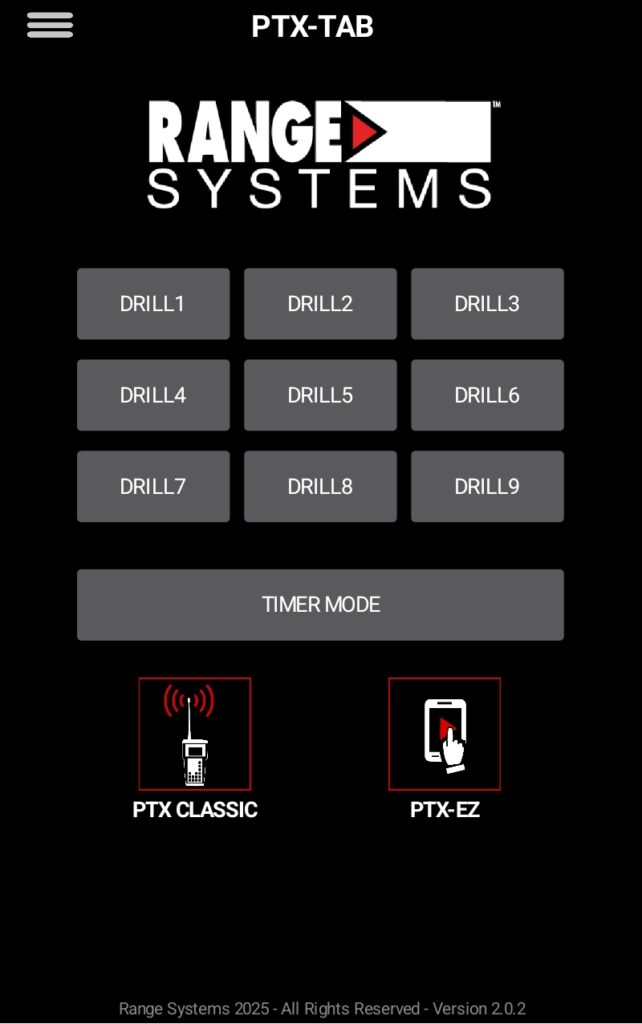
The Home Screen provides access to pre-programmed drills (1–9), a Timer Mode, and options to navigate to Manual Control, Programming, and other advanced settings. While you can't create new programs directly from this screen, it serves as a hub for running quick drills and accessing key control features.
Target Control
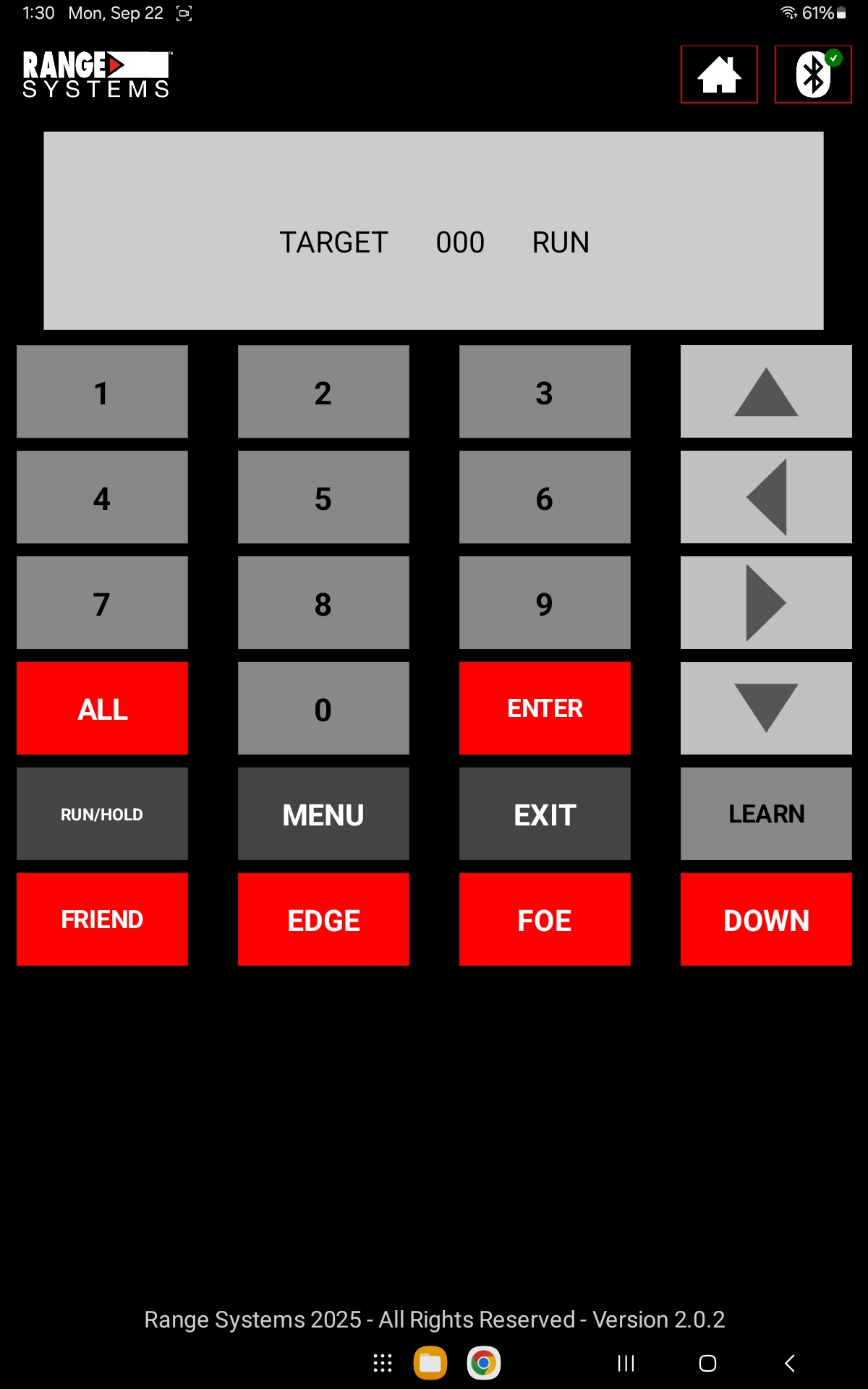
The Manual Target Control screen allows direct control of individual targets. The layout is designed to match the older handheld controller for a familiar user experience. Users can access core functions like raising, lowering, or setting target states manually. A MENU button is available for quick access to additional settings and program functions.
Independant Target Control
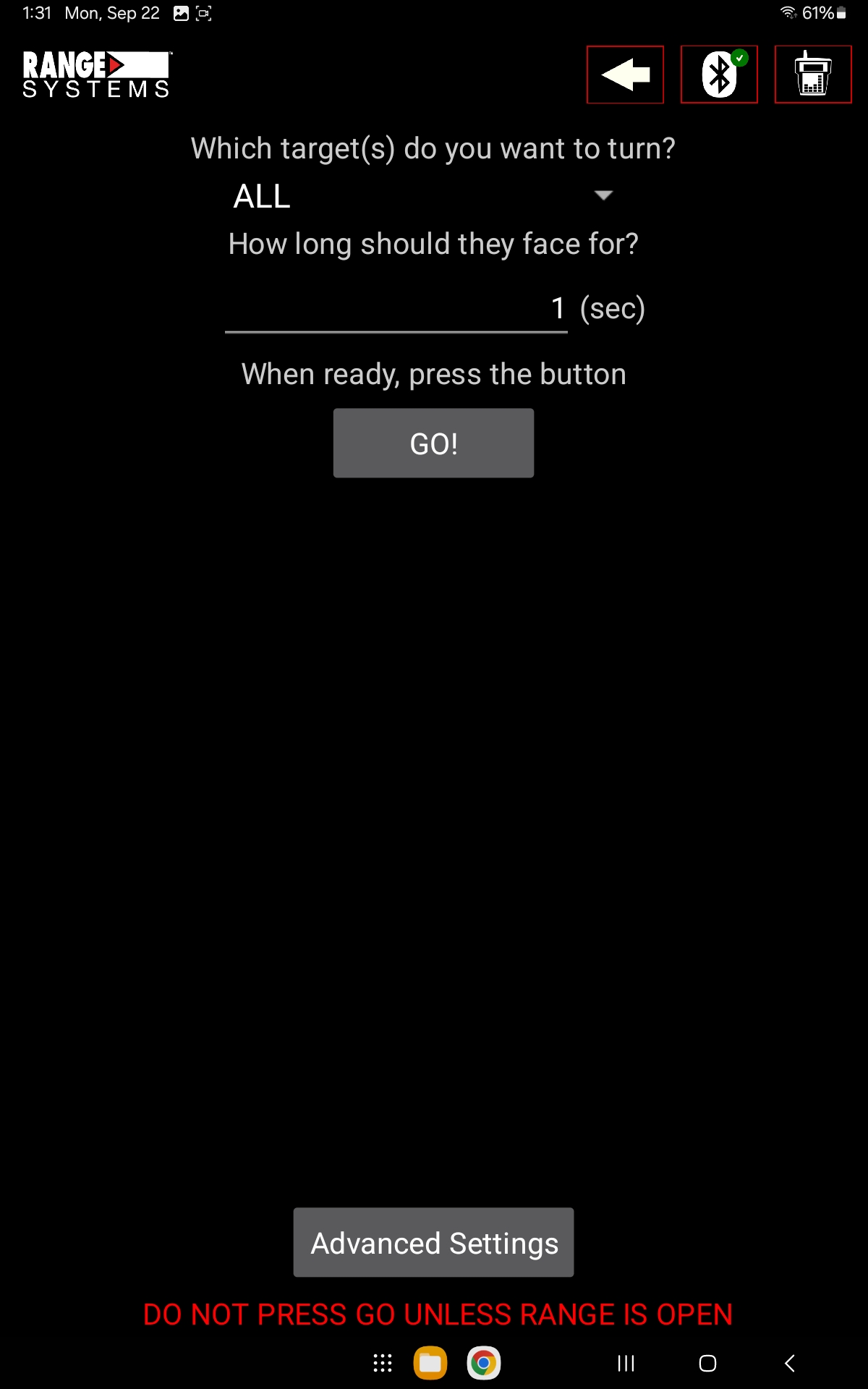
The interface displays a timeline where users can assign commands to different targets for each second of the program. Commands like FRIEND, EDGE, FOE, and DOWN can be selected.
Programming C.O.F.
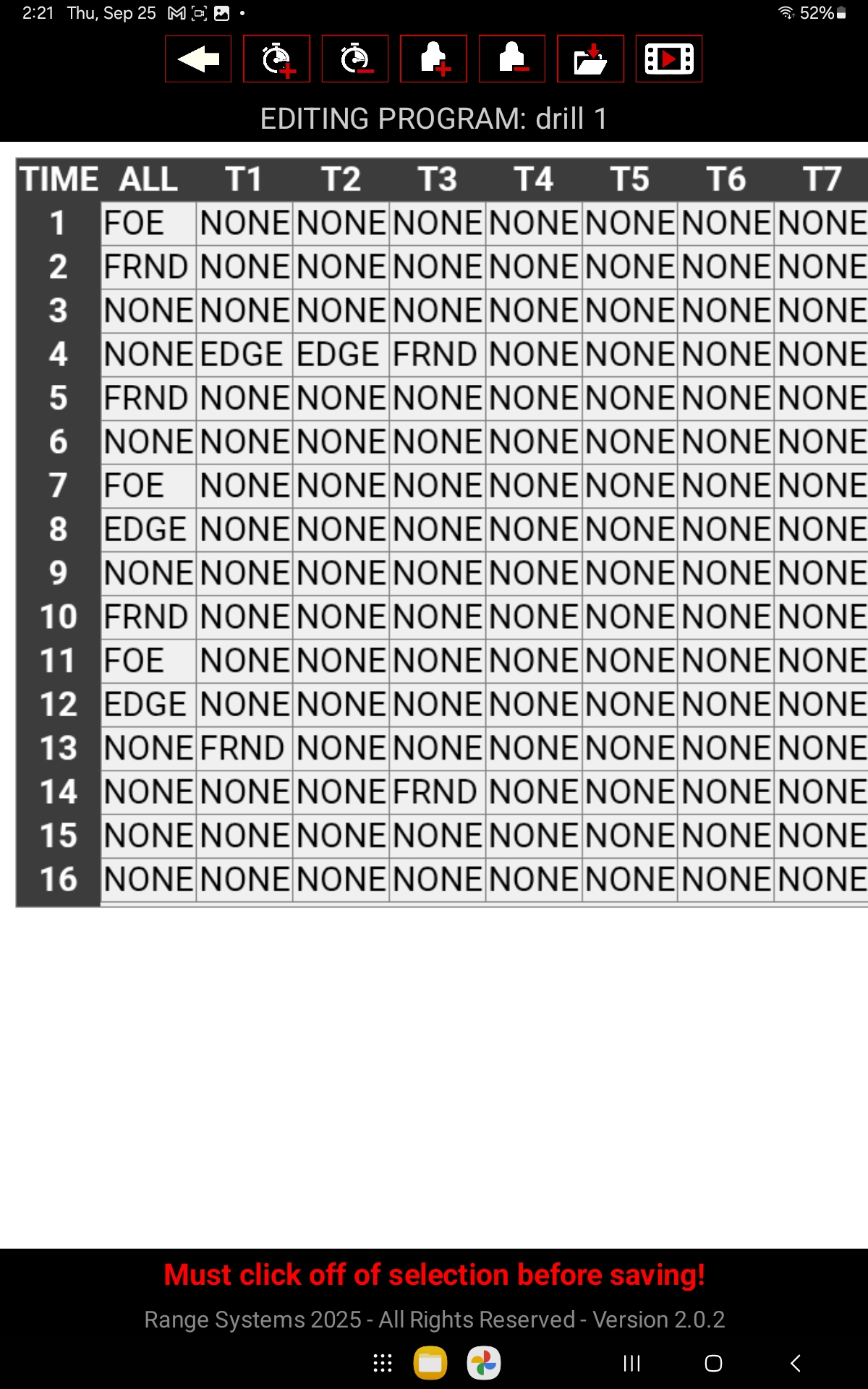
This screen allows the training officer to create and customize courses of fire for each individual lane. Officers can set specific commands and timings tailored to each target, ensuring precise and flexible training scenarios across all lanes.
System Requirements
| Component | Minimum Requirement |
|---|---|
| OS | Android |
| RAM | 32 GB |
| Disk Space | 10 MB free |
| Network | Bluetooth |
Version Number
2.0.2
Version Updates
Resolved crashing issue from the previous version
Improved access to the file manager
Now compatible with all current versions
ANDROID SOFTWARE DOWNLOAD
INSTALLATION
Installing Range Systems Software on an Android Tablet
Check Requirements:
Ensure your Android tablet is running a compatible OS version.
Confirm Wi-Fi or mobile data connection.
Get the Software:
Visit the official Range Systems website to download the Android version of the software.
Manual APK Installation:
Download the APK file from the official source.
Open the APK file and tap Install.
Launch & Configure:
Open the app after installation
Click allow access to photos and videos on this device
- Back out and Click on Settings in the manual menu. Go to thew apps sections and click on PTX-TAB. Allow all permissions available options.
- In the app click on the menu button in the top left then click on “File Permissions” then “use this folder“
Test Connection:
Ensure the tablet can connect to the range hardware
⚠️ Note: After install is complete you must turn off WIFI
Installation steps may vary slightly depending on the version of the software and how your organization deploys it. Always follow your admin’s guidance for security and setup.
PROGRAMMING A COURSE OF FIRE
Create a New Program
Tap MENU.
Go to PROGRAMS > NEW.
Enter a name (no spaces or special characters).
Enter how long the program should run (in seconds).
Enter your highest target number.
Tap EDIT to start building your program.
Using the Program Table
Each row = 1 second in the program.
Each column = A target (1, 2, 3, etc.).
The first column lets you send a command to all targets.
Add Commands
Tap a cell twice to edit it.
Choose one of these commands:
FRIEND
EDGE
FOE
DOWN
Each cell starts as NONE, meaning no change.
Add More Time or Targets
Tap +TIME to add more seconds.
Tap +TARGETS to add more targets.
⚠️ TIP: If you use an ALL command, make sure the rest of the row is set to NONE.
Test & Save
Turn targets ON.
Tap RUN to test the program.
⚠️Tap outside the table to unselect cells.
Tap SAVE, then BACK to return.
SUPPORT
Need Help? We’re Here for You Every Step of the Way.
Whether you’re installing for the first time or troubleshooting a technical issue, our support team is ready to assist you. Don’t hesitate to reach out, we’ve got your back.
or call (833) 244-8925