









PRO-Control SOFTWARE
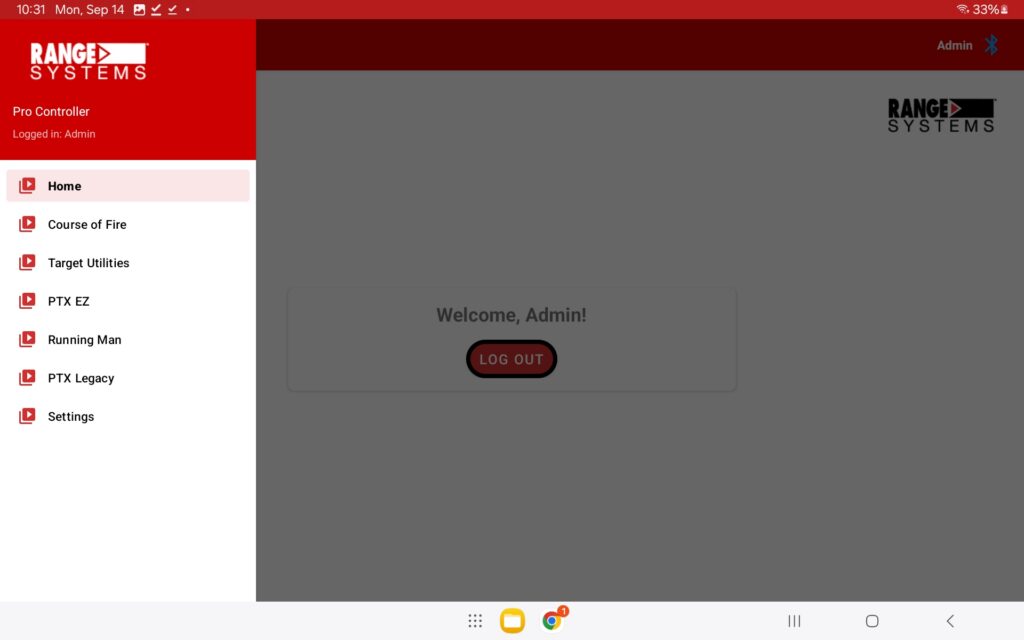
Range System’s new Pro-Control Software is the powerful, intuitive control platform behind the Pro-Tab Master Controller, providing seamless wireless control and programming of Range Systems Pro-SIT, Pro-Turn Series, and Pro-Runner target systems.
Designed and developed in-house by Range Systems, Pro-Control combines simplicity, portability, and reliable performance for demanding live-fire training environments. Bluetooth connectivity provides responsive wireless target management with an extended control range of up to 600 meters, allowing instructors to safely operate training scenarios from a distance.
Pro-Control can manage up to 200 Pro-Turn Series targets. Users can also create, save, and execute custom Course of Fire (COF) programs, making it easy to build everything from basic drills to complex, multi-target training scenarios.
Paired with the Pro-Tab Master Controller, Pro-Control provides a streamlined interface that puts complete target management in the instructor’s hands. Because the software is developed and supported directly by Range Systems, users benefit from seamless system integration, intuitive operation, and knowledgeable technical support when needed.
System Requirements
| Component | Minimum Requirement |
|---|---|
| OS | Android |
| RAM | 32 GB |
| Disk Space | 10 MB free |
| Network | Bluetooth |
Version 1.5
Version Updates
- PTX 600 Transfer (new menu item): connect a PTX 600 handheld to the tablet with a USB-to-RS232 adapter to read its 10 program slots, download a slot, upload a course of fire into a slot (read back to check), or save a slot’s program as a course of fire.
- Course of Fire screen redesigned: each range is a folder tab, its courses are a searchable list, and the picked course shows a preview (a colored fingerprint of the whole course, its figures and stages) with Run and Edit buttons.
- Share a course of fire with another tablet as a .ptcof file: the share button on the preview sends it or saves it to a file, and Import beside New COF brings it in. The course travels with its range; importing creates the range if this tablet doesn’t have a matching one.
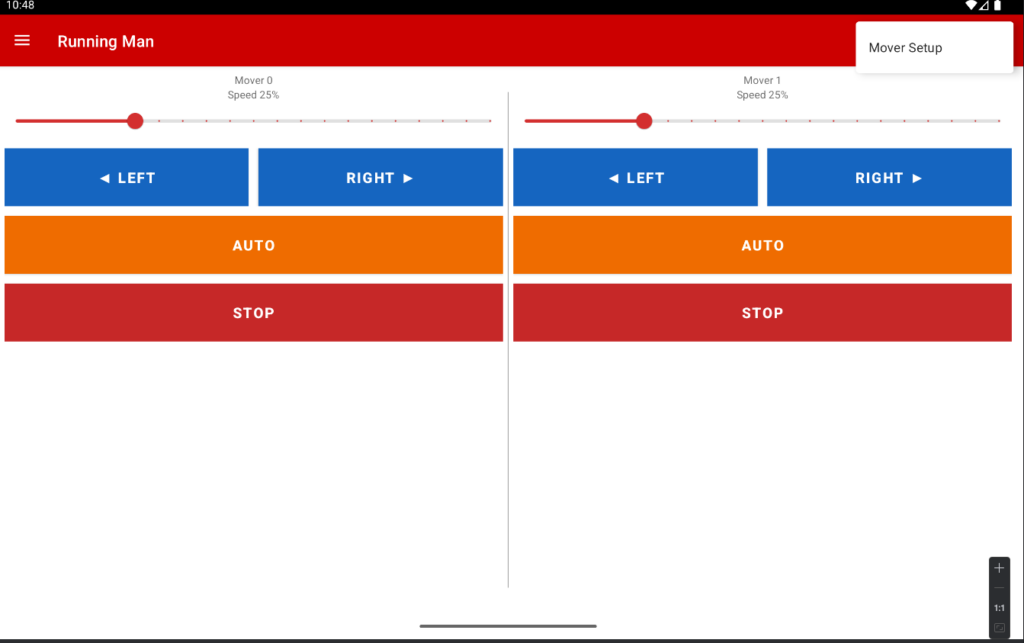
- ProRunners in a course of fire: if a range has ProRunners, Create, Edit and Run COF have a Targets | ProRunners toggle. Script LEFT / RIGHT / AUTO / STOP moves with a speed per row; they play with the course, and every runner gets a STOP at pauses, stage breaks, the end, and Stop.
(Running Man / Pro Runner is now called ProRunner throughout.) - The 1.5-second turn limit is gone from Create and Edit COF, along with its Admin Settings switch.
- Deleting a range now deletes the courses of fire built for it; the confirmation says how many.
- Jumping to a row or replaying a stage in Run COF stops timing that run, since it is no longer a clean top-to-bottom run.
- Settings is laid out in grouped cards. The PTX EZ recorder is always on (its Settings switch is gone). Menu Tools changes are kept as a draft until you tap Save.
- COF screens: the top bar is one line that wraps on a narrow screen, and button rows stack when the tablet is held upright.
- The Range Systems logo plays as a short animation when the app starts (tap to skip). The menu marks the current screen with a red triangle.
- Phase Select in a qualification session: pause the session and pick a phase to carry on from, or start a new session at a later phase. Every target comes down first. Engagements skipped on the way score zero; re-running a phase clears and re-shoots its scores.
- Pausing a qualification session now only stops the clock. Targets stay as they are — raised targets stay up. Use Cease Fire to bring them down.
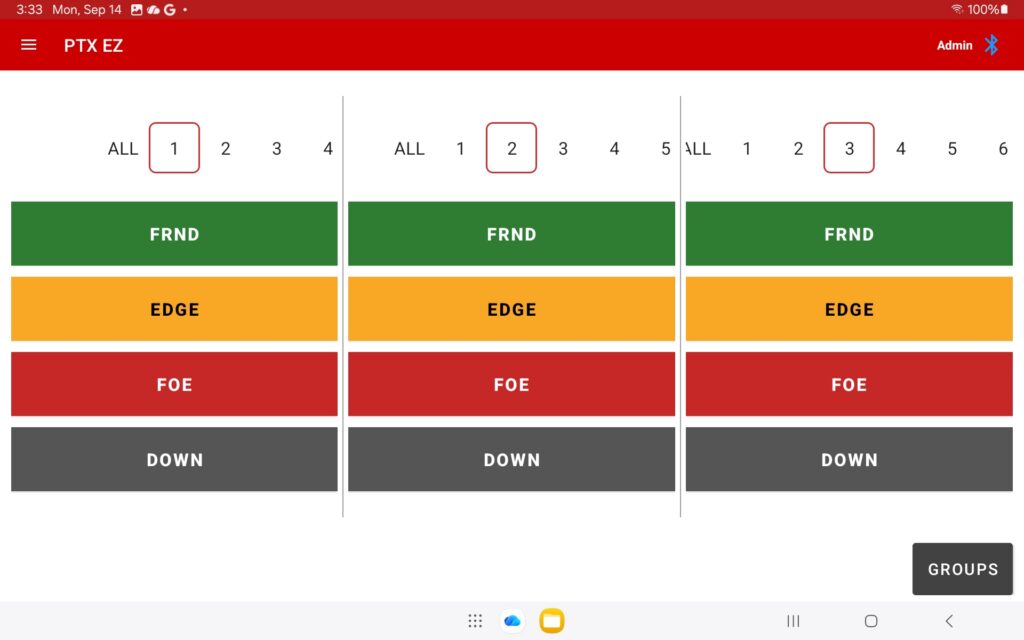
- PTX EZ can reach any target from 1 to 200. A spinner in the bottom bar picks where the reels’ numbers come from (Default 1–12, any COF range, or any qual range), and tapping the number in a lane’s frame opens a keypad to type any target.
- The COF and qualification jump-to pickers use larger rows that are easier to read at arm’s length.
- Saved Sessions on the Qualification page is now a button in the bottom-left corner, shown once a session has been saved.
- Create and Edit COF: while a selection is up, tap outside it to stretch it to the tapped cell, tap inside to trim it back, and tap a one-cell selection to clear it. Back clears a selection instead of leaving the
screen. - The app version is shown in the toolbar next to the logged-in user.
Pro-Control Software Download
PRO-CONTROL SOFTWARE ACCESS
NEW CUSTOMER
Create a customer account to request access to Pro-Control Software. Registrations are reviewed by Range Systems before downloads are enabled.
EXISTING CUSTOMER
Already have an approved account? Sign in to access the latest Pro-Control Software download for your compatible Range Systems equipment.
Already registered? New accounts must be approved before software downloads become available.
Once logged in, select the appropriate download based on your preferred method of installing or updating Pro-Control on your Android tablet.
Pro-Control – Direct Tablet Installation (APK)
Use this download when accessing this page directly from your Android tablet.

Pro-Control – Tablet Installation via Windows PC (ZIP)
Download this installation package if you are using a Windows desktop or laptop to install or update Pro-Control on your Android tablet..

INSTALLATION
PRO-CONTROL SOFTWARE INSTALLATION
Pro-Control can be installed or updated directly from your Android tablet or by using a Windows desktop or laptop. Both installation methods install the same Pro-Control software on your Android device.
1. Obtain Software Access
Software downloads are restricted to approved Range Systems customers.
Visit the Pro-Control Software Download Page.
New customers must complete the registration form above and wait for account approval.
Existing Pro-Control customers can select Customer Login and sign in using their approved account.
Once logged in, select the appropriate installation package.
2. Choose Your Installation Method
Option A: Direct Tablet Installation (APK)
Use this method when downloading and installing Pro-Control directly from your Android tablet.
Connect your Android tablet to the internet.
Navigate to the Pro-Control Software Download Page.
Select Pro-Control – Direct Tablet Installation and download the APK file.
Once the download is complete, open the Files or My Files application.
Locate the downloaded Pro-Control APK file in the Downloads folder.
Tap the file to begin installation.
If prompted, select Settings and enable Allow from this source.
Return to the installation screen and select Install.
Once installation is complete, open Pro-Control.
Option B: Tablet Installation via Windows PC (ZIP)
Use this method when installing or updating Pro-Control on your Android tablet using a Windows desktop or laptop.
Navigate to the Pro-Control Software Download Page on your Windows PC.
Select Pro-Control – Tablet Installation via Windows PC.
Download the ZIP installation package.
Right-click the downloaded ZIP file and select Extract All.
Connect your Android tablet to the computer using a USB data cable.
Follow the installation instructions provided with the Windows installation package.
Once installation is complete, disconnect the tablet and open Pro-Control.
3. Configure Application Permissions
After installing Pro-Control, complete the initial application setup.
Launch Pro-Control from the Android tablet.
Allow the requested Bluetooth, Nearby Devices, Location and file access permissions, where applicable.
Open the Android device Settings and navigate to Apps.
Locate the installed Pro-Control application and verify that the required permissions are enabled.
Return to Pro-Control and open the menu in the upper-left corner.
Select File Permissions.
Select Use This Folder and confirm access when prompted.
These permissions are required for proper communication and file management.
4. Complete Installation
Verify that the correct software version is displayed.
Confirm that Bluetooth is enabled.
Disable Wi-Fi after installation and configuration are complete.
Verify communication with your compatible Range Systems equipment in accordance with its operating manual.
IMPORTANT: Bluetooth and all required application permissions must remain enabled during normal operation. Installation screens and permission settings may vary depending on your Android device and operating system version.
Technical Support
For assistance with software access, installation or configuration, contact Range Systems.
Email: sales@range-systems.com
Phone: (833) 244-8925
communication between the Android device and the target system.
PROGRAMMING A COURSE OF FIRE
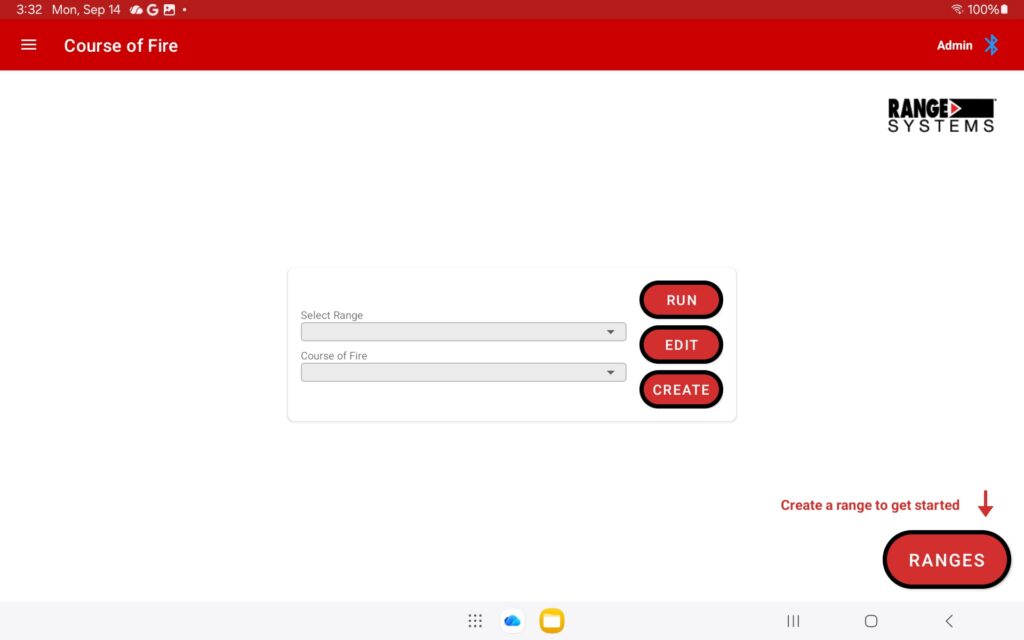
Step 1: Select Ranges
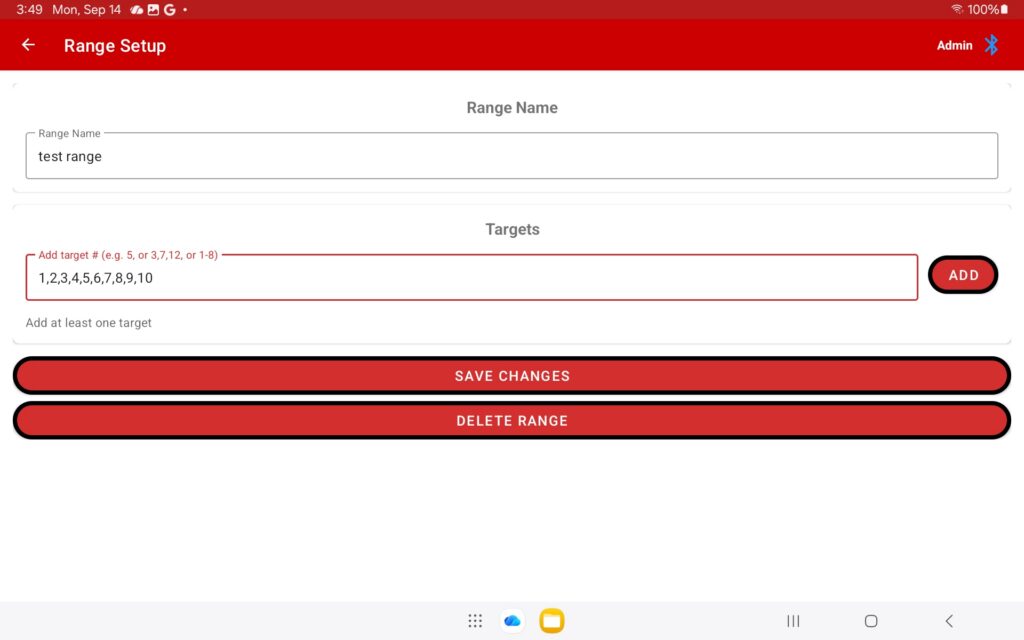
Step 2: Enter a Range Name and add the targets that will be used in the range. Once all targets have been added, press SAVE to complete the range setup.
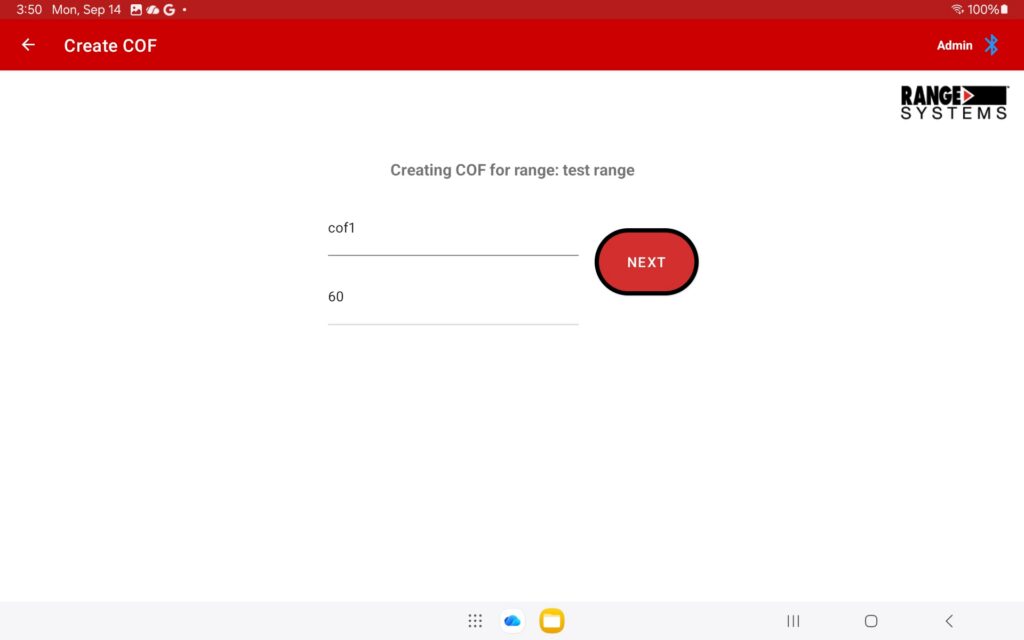
Step 3: Enter a COF name and the length the COF will run for in seconds then press NEXT.
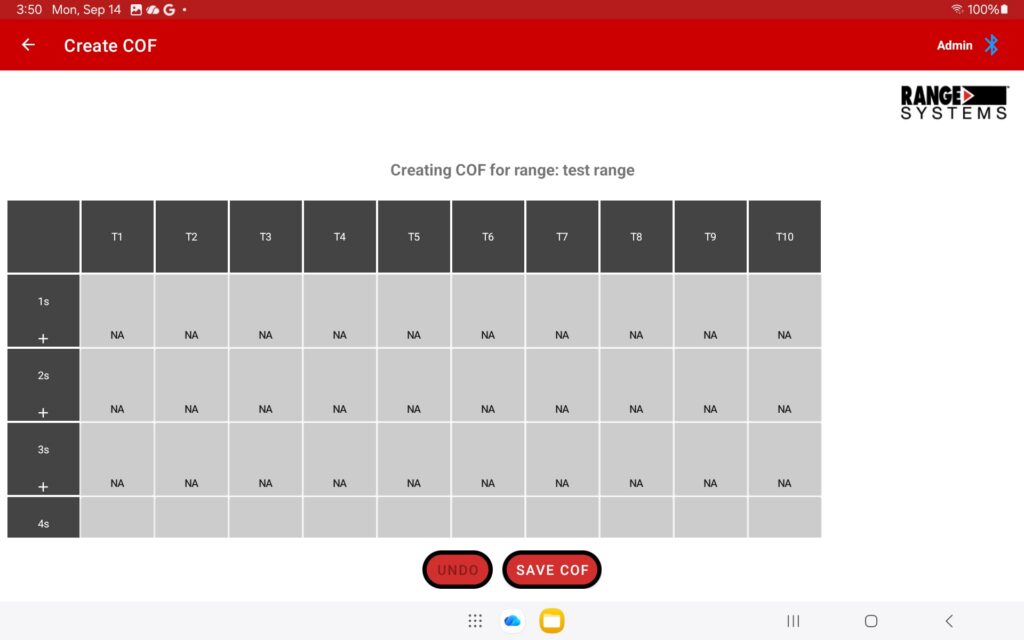
Step 4: Create your COF and press SAVE COF to complete.
SUPPORT
Need Help? We’re Here for You Every Step of the Way.
Whether you’re installing for the first time or troubleshooting a technical issue, our support team is ready to assist you. Don’t hesitate to reach out, we’ve got your back.
or call (833) 244-8925